Showing posts with label Web Site. Show all posts

Friday, 5 April 2013

Hosting a Web Site on BT Broadband - Local Network

Setting up your Local Network

In the next Blog post in my series about hosting your own web site from home using your BT Home Hub, I will cover the set up of your web server on your local network and how you can access it remotely to complete the configuration of you web site.  You do not potentially need to do things remotely until after you've gone live, but it can help with the set ups, particularly if your server is in a difficult to reach place and without a permanently connected monitor.  I would generally use the inbuilt Windows software (Remote Desktop Connection) to make this type of remote access possible.

To connect to your web server remotely, you'll need to know the name of the computer on your network and a username and password.  This really needs to be the Administrator, for many of the things you'll need access to, or at least another user with full admin rights.  As it the third time if set this sort of thing up, I imaginatively named my new computer SERVER-03.  To connect to it from another computer on you network it needs to be available to your network permanently.  I have a (network) hub which I connect to using Ethernet (as opposed to doing things wirelessly and this hub in turn is connected to my BT HomeHub, but I don't see why connecting wirelessly back through a router or even by Ethernet back directly to the BT HomeHub would be a problem.  You need the connection to the HomeHub, so that you can make your server available to the Internet when you come to that part.

As far as using the Remote Desktop Connection software is concerned, you should be able to search for it on your computer from the Start Menu, if you don't already know where it is.  The Windows shortcut will look like this (on a 32bit system):

Remote Desktop Connection Shortcut Properties

It will normally be found in the Windows Start Menu > Programs > Accessories, like so:

Windows Start Menu > Programs > Accessories
Before you try and use the remote desktop connection, just be sure that you can access the computer from another PC on the network. e.g. in my example, where my server is named SERVER-03, you should be able to ping it or browse to it using Windows Explorer.

Network \\SERVER-03 - Viewed Using Windows Explorer
Once you're confident that the computer you are currently working on can communicate with the Server on the Network then you should be able to establish a Remote Desktop Connection.  This is dependant on a setting on the Server, so it may be wise not to discard the monitor you used to view the server's desktop too soon in the process!  Dependent on the Operating System the options may look slightly different on the dialogue, but it will be something like this:

System Setting to Allow Remote Desktop Connections
Once you are happy with all of the above, establishing the Remote Desktop Connection should be straight forward and you will log on using the Server's computer name a system user and the password.  This should be something like as follows (don't forget to use your server's name - not necessarily SERVER-03):

Remote Desktop Connection - Log on
You will need to click the "Connect" button and then another dialogue will allow you to input the user credentials.  As I mentioned before, it's best to use the Administrator account to log on with, so as long as you have that password, you should get a (Remote Desktop) Connection OK. 
Enter Your Credentials (RDC)
You'll get a new tab that will appear (generally) it the top of your screen and then, once the configurations have loaded properly, you should be able to see the desktop of the server to carry out any further set-ups and configurations. 
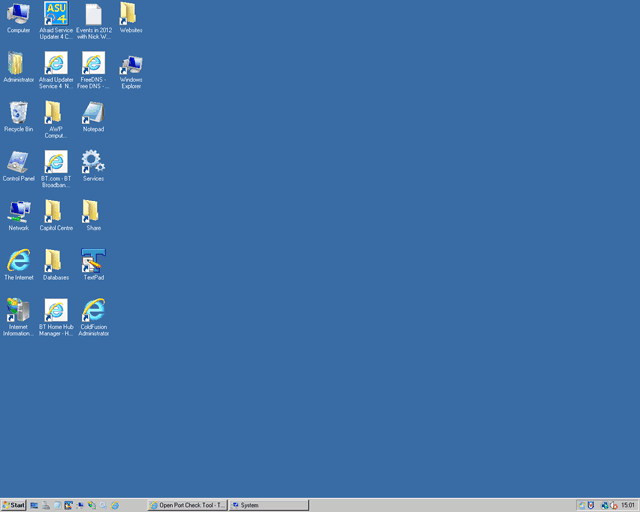
SERVER-03 Desktop Via Remote Desktop Connection
The next step in the process will be Acquiring and configuring a Domain Name, which will be covered in my next Blog post.  As far as the other steps of the process are concerned, the following articles will cover the other important topics:


Hosting a Web Site on BT Broadband - Web Server

Procuring and setting up a Web Server

Following on from my previous article, Hosting a Web Site at Home on BT Broadband, I'm going to now look at how you could obtain a basic web server relatively inexpensively and set it up so that you can host a (or some) hobby web site from home using your BT Broadband.


If you are going to set up your own server, just be aware that any data transferred from your server to anybody accessing your web site will be included in your monthly bandwidth.  Another thing to be aware of, due to the nature of ADSL (Asymmetric digital subscriber line), is that the upload speed, which is going to be your user's download speed, is slower than your normal download speed.  However, I've viewed my pages from other computers outside of my network many times and the speed of page load never seems to be an issue.


I've had web sites hosted at home for quite a few years now, as I say, not something I recommend for anything serious or for a commercial enterprise, but can be a cheap way to set up you own personal web sites.  Also, with all the hardware and software at home, it means that you can have full access to the server, whereas you may not get this level of access from a hosting provider.  I initially set things up with a very basic specification desktop PC and installed a copy of Windows 2003 Server.  This machine gave up last year, another thing to be aware of if you're hosting something important, so I had to acquire a new machine, reconfigure it, install software and restore the files from a back-up.

My replacement, is still a fairly low spec. desktop PC, but I increased the RAM a bit whilst setting it up.  I got and old DELL Optiplex GX620 SFF with an Intel Pentium 4 processor from Ebay and was fortunate enough to find one with Windows Server 2008 installed.  I won it in an auction for £29.99 + £13.99 for the postage & packaging, so the whole thing including the new RAM cost near enough £60.  I managed to buy my server from a seller that seems to be selling old office equipment including old PCs fairly regularly (linda25setp2007), so it's likely that she'll have other similar items coming up in the future.

A DELL Optiplex GX620 SFF
Once you've got the server up and running from a hardware, operating system and basic config perspective, you need to think of somewhere you can keep it that's out of the way.  This location needs to be accessible,  cool and dry.  Do bear in mind that the server will need to be switched on all the time (24/7/365), so if it's in a room you use often the noise from the fans may be annoying.  I use an area under my stairs.  It's out of the way, but not too difficult to get to if I need to access it for maintenance.  I had a VDU (monitor) attached to it whilst I did the basic installs and set-up up but then I took that away (once the computer was properly installed on my network) and now connect to it remotely using RDC (a Remote Desktop Connection).  However, you could carry on working directly on the computer to make the set-ups and leave the monitor connected at least until you go live or all of the time if you have a spare one.  I'll cover more about how to make the Remote Desktop Connection in the following Blog post about Setting up your Local Network

The important thing, before you consider having you server available to the World Wide Web, is that you are able to serve web pages from it using IIS.  This was covered in my last Blog post (the first in the series) entitled "Hosting a Web Site at Home on BT Broadband".

I have a number of "hobby" sites set up on my web server and I configure these using the IIS 7 (Internet Information Services) Manager that is available on Windows 2008 (...other versions are used on other Windows operating systems).  The web site that I may use to discuss a specific point will be www.waltonledale.co.uk, but I will not be writing about how to carry out much of the configuration in IIS.  I will cover a handful of specific points directly related to hosting your site(s).

Internet Information Services (IIS) 7 Manager
Firstly, once you have you site(s) ready to serve, you need to be mindful that your server is only going to have one (static) ip address within your network and one (dynamic) ip address to the outside world (on the Internet).  To ensure that incoming http requests get to the correct site you will need to configure the "Bindings" to enable each site to use a specific Host Address.  The settings are available from the right hand panel of the IIS Manager and the settings need to be configured like so:

Edit Site Binding - IIS Web Site Configuration
 The 'Type' should be set to 'http', the 'IP address' should be set as 'All Unassigned' and the 'Port' would generally be the standard http port (80).  The "Host Name" should match the Domain Name that you want to use for the web site.  Please note this must be a Domain (or Sub Domain) that you own and have access to the configuration of.  You are going to need to alter the DNS, which will be covered in a later Blog post (IP Addresses and Dynamic DNS), so you will need access to this to make everything work.

Please see my next post about Setting up your Server on your Local Network and all the posts related to Hosting a Web Site on BT Broadband as follows:


Tuesday, 19 March 2013

Hosting a Web Site at Home on BT Broadband

Using a Home Network to Host a Web Site
(BT Home Hub)

In the following few articles, which I will post next month, I will be writing about how it is possible to set up and host your own web site from home using your broadband connection and in my case the BT Home Hub.

Since the early days of designing and building web sites a lot of my work has been done on a local server.  I'm a Microsoft Windows user and most of their operating systems will give you access to their web server software, which is not too dissimilar to the commercial version that you'd get with specifically built server operating systems, such as windows 2008.  The web server software is called IIS (Internet Information Server) and when enabled in Windows will allow you to properly serve and view your web pages as if they were coming from a web server.

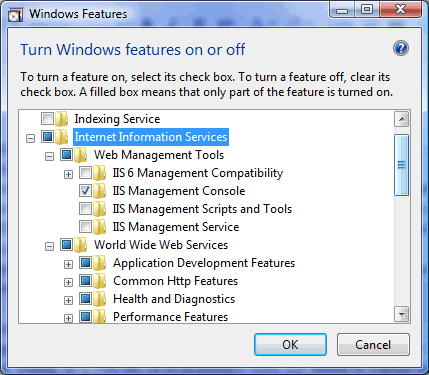
If you wanted to have access to IIS on your Windows computer to see how it works, then it can be added through the Control Panel's "Programs and Features" option.  This is where you would normally (as it was called in older operating systems, such as Windows XP) "Add and Remove Programs".  As well as the features you have possibly seen to uninstall software programs, there is also an option to "Turn Windows features on or off".

The Control Panel's "Programs and Features" option
Selecting the checkbox for the Internet Information Server will automatically select al the necessary sub features, and there's probably no reason to disable any of those.  The older operating systems used to require the original Windows OS installation CD (or DVD) at this stage, but that shouldn't be the case with more up to date systems such as Vista or 7.  I can't comment about Windows 8 at this point, as I haven't yet tried it.

Turn Windows features on or off
Anyway, moving on!  It's not my intention to write about the task of installing IIS and the basic configuration of IIS in this article, as I'm sure it's been done many times before.  However, it is an essential part of the hosting set-up, so it warranted a mention.  Once you're up and running you'll end up with the ability to serve web pages locally on on your local network using the normal protocol for this, which is http (Hypertext Transfer Protocol), and the hyperlinks and source files will behave properly, as compared to viewing a web page you have authored directly from you file system (i.e. a folder on you C: drive for example).  On a local machine you will be generally able to browse a web site you are developing from a local domain (normally http://localhost/) or an ip address.  The localhost ip address is usually 127.0.0.1 (http://127.0.0.1/).

Ok that's enough about the local server config.  If you like to know more about that one, I'd suggest a Google search for something along the lines of "running IIS locally".  I haven't looked too far through the available articles, but this one titled "Setting up a web site on local machine using IIS" seems to explain the basics OK.

I am sure, there will be plenty of useful information already out there!

As far as what you will need to know about, to get a computer up an running on your local network, serving web pages and visible to the outside world using your BT Home Hub, this will be covered in the following topics:
It's all reasonably straight forward, and whilst I would certainly not recommend this type of home network hosting for anything commercial, or anything that needs reliable bandwidth and up-time, it can be an interesting way of learning about the configuration when your not able to get you hands on the servers normally.  For example, in my last job, I was involved in sales and for security reasons (we dealt with credit card payments etc.) I couldn't get access to our Windows Servers, so I used to keep things set up at home for hobby web sites that allowed me to keep my hand in on the practical side.  Also, for somebody leaning about web design and development, it's also a could way of having a go and experimenting with the set-ups without compromising anything that's too important, such as commercial web sites.

Please keep and eye out for my future posts, which will hopefully help you understand how the necessary components all fit together.